Appearance
Metadata Management
This guide is for developers and explains the Metadata management feature of the EO Platform. Metadata is a further abstraction and cataloging of the original files in "Data Storage." It records the core attributes (e.g., spatial extent, resolution, band information) and business attributes (e.g., tags, associated dataset) of the files, forming the basis for data retrieval, analysis, and publishing.
1. Prerequisites
Before you begin the integration, please ensure that the following environment is ready:
- Account Permissions: You need access and operational rights for the "Metadata Mgt" module.
- Input Data: Ensure that data files have been uploaded to the "Data Storage" module, as metadata is created based on these files.
- Running Services: Ensure that the following services are online and connected:
data_management_service(Java) is deployed and connected to PostgreSQL.neu-gis-task-server: schedules asynchronous parsing jobs and syncs status back to the management service.neu-gis-data-server: orchestrates downstream computation and publishing services.image-processing-server: generates image tiles, thumbnails, and pyramid levels.geoserver: loads the processed results and exposes tile/service endpoints.
2. Core Workflow
2.1 Create Metadata (Add Metadata)
- Navigate to the Metadata Mgt page from the left-side navigation bar.
- Click the Add Metadata button in the upper-right corner of the page to open the creation dialog.
- Fill in the form fields:
| Field | Required | Description |
|---|---|---|
| Metadata Name | Yes | The display name of the metadata, ≤ 50 characters. |
| Select Data | Yes | Select an original data file from "Data Storage" as the basis for the metadata. |
| Select Dataset | No | Assign this metadata to one or more created datasets for organizational purposes. |
| Select Tag | No | Associate tags with the metadata for quick categorization and filtering. |
| Thumbnail | No | If checked, the system will automatically generate a thumbnail for the image, which will be displayed in the list. |
- Click Save to complete the creation by calling
POST /metadata/create.
2.2 View the Metadata List
- After successful creation, the new metadata will appear in the All Metadata list.
- The list page displays information such as the metadata's thumbnail, name, file format, size, type, tags, activation status, and associated dataset.
- You can filter by name using the search box at the top or use the filter button on the right for advanced filtering.
- The list data is provided by
POST /metadata/query/page.
2.3 Edit Metadata (Edit Metadata)
- Find the metadata you want to modify in the list page and click the "edit" icon on the right to open the editing dialog.
- In the dialog, you can modify the metadata's name and re-associate datasets or tags.
- You can also set the metadata's
Status:- Active: The metadata is available and can be retrieved and used throughout the platform.
- Inactive: The metadata is disabled and will not appear in normal search results.
- Click Save to complete the modifications.
2.4 View Details and Publishing Results
- By clicking on any metadata name in the list page, you can go to its details page or publishing results page.
- The details page will display all the technical information parsed from the original file, such as:
- Path: The path in data storage.
- File Format: The file format, e.g.,
tif. - Resolution: The spatial resolution.
- Bands: The number of bands.
- Capture Time: The capture time of the image.
- For image-type data, the details page usually provides a preview window to view the image content.
- Imagery preview rendering is powered by
ge3d rendering.
2.5 Service Call Chain
Metadata-related APIs are exposed by data_management_service, while the backend coordinates parsing and publishing in the following order:
data_management_service: Receives frontend requests, reads/writes PostgreSQL, and triggers follow-up jobs.neu-gis-task-server: Schedules asynchronous parsing and tile-generation jobs, feeding status back to the management service.neu-gis-data-server: Acts as the orchestration layer and dispatches workloads to downstream services.- →
image-processing-server: Performs heavy image processing such as tiling and pyramid generation. - →
geoserver: Loads the processed results and exposes final tile/service URLs.
- →
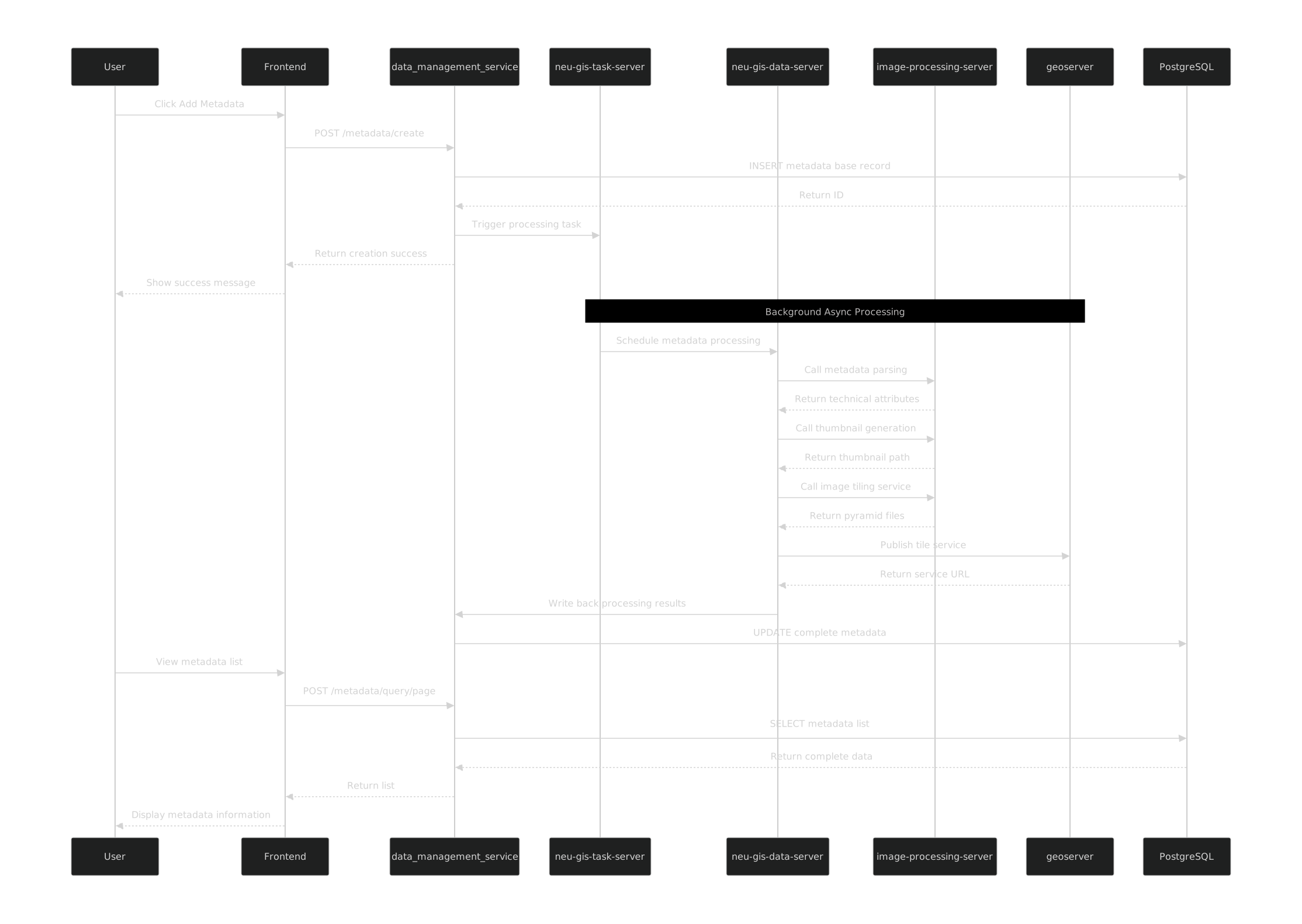
End-to-end metadata publishing flow
3. API Quick Index
| Capability | API | Description |
|---|---|---|
| Create Metadata | POST /metadata/create | Creates a metadata record based on a file in data storage. |
| Query Status | POST /metadata/query/detail | Query metadata detail |
| Query Status | POST /metadata/detail/protoc | Query metadata publish status |
| Get Publish Url | GET /metadata/query/raster/publishUrl | Retrieves the tile service address and details of a published image. |
| Paginated Query | POST /metadata/query/page | Retrieves a list of metadata, with support for pagination and advanced filtering. |
| Update Metadata | POST /metadata/update | Modifies the name, status, tags, etc., of a metadata record. |
| Delete Metadata | DELETE /metadata/delete | Deletes a metadata record. |
4. Debugging and Troubleshooting
- Creation Failed: Please make sure that a valid data file has been selected in "Select Data".
- List Not Displaying: Check if the request parameters for
POST /metadata/query/pageare correct, especially the filter conditions. - Image Preview Fails: Confirm that the metadata has been successfully published. You can call the "Query Publish Status" API to check its publishing status. If it is not published or has failed to publish, please perform the publishing operation first.
- API 401/403: Check the Token in the
Authorizationrequest header and confirm that the account has the appropriate permissions for metadata management.