Appearance
Data Storage
This guide is for developers, explaining how to securely integrate image files into the EO Platform through the complete workflow of "Add Data → List Verification → Detail Confirmation," which involves frontend dialogs, backend APIs, and background tasks.
1. Prerequisites
Before starting the integration, please ensure the following environment is ready:
- Account Permissions: You need access and write permissions for the "Data Storage" module.
- Object Storage Permissions: You have configured OBS/S3 compatible upload permissions, or you can use the temporary credentials returned by the platform.
- Running Services:
data_management_service(Java service) is deployed and connected to PostgreSQL.data_process_service(Python, for image parsing tasks) is running correctly and connected to PostgreSQL.
2. Add Data Upload Workflow
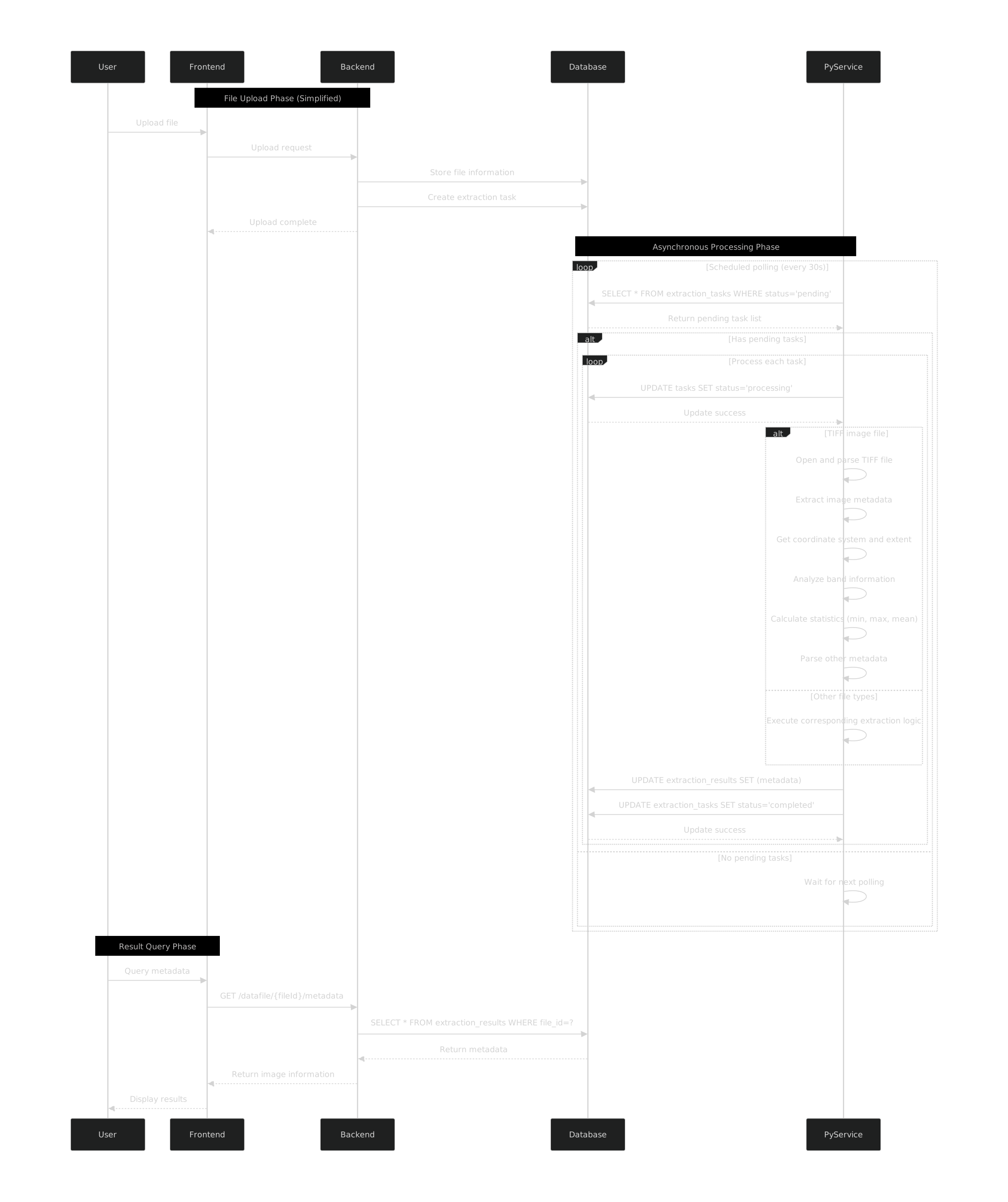
Add Data sequence overview
2.1 Frontend Operations
- Click Add Data in the upper right corner of the data storage page to open the dialog.
- Choose the source of the file:
- Local: Drag and drop or select a file from your local machine (single file ≤ 5 GB; for vectors, provide associated files like
.shp/.shx/.dbf/.prj). - Link: Fill in an external storage URL for the backend to pull asynchronously.
- Local: Drag and drop or select a file from your local machine (single file ≤ 5 GB; for vectors, provide associated files like
- Fill in the form fields:
| Field | Required | Description |
|---|---|---|
| Data Name | Yes | Display name in the platform, ≤ 50 characters |
| Upload to Folder | Yes | Target directory, e.g., Data Storage |
| Category | Yes | Business category (Satellite, Other, etc.) |
| Type | Yes | Data type (Raster, Vector, 3D Model, BIM, etc.) |
| Capture Time | No | Capture time, YYYY-MM-DD HH:MM:SS recommended |
| Sensor / Provider | No | Sensor and provider information |
- Click Save to call the appropriate pre-upload API, such as
POST /datafile/file/pre-upload/raster.
2.2 Frontend Upload Logic (Local vs Link)
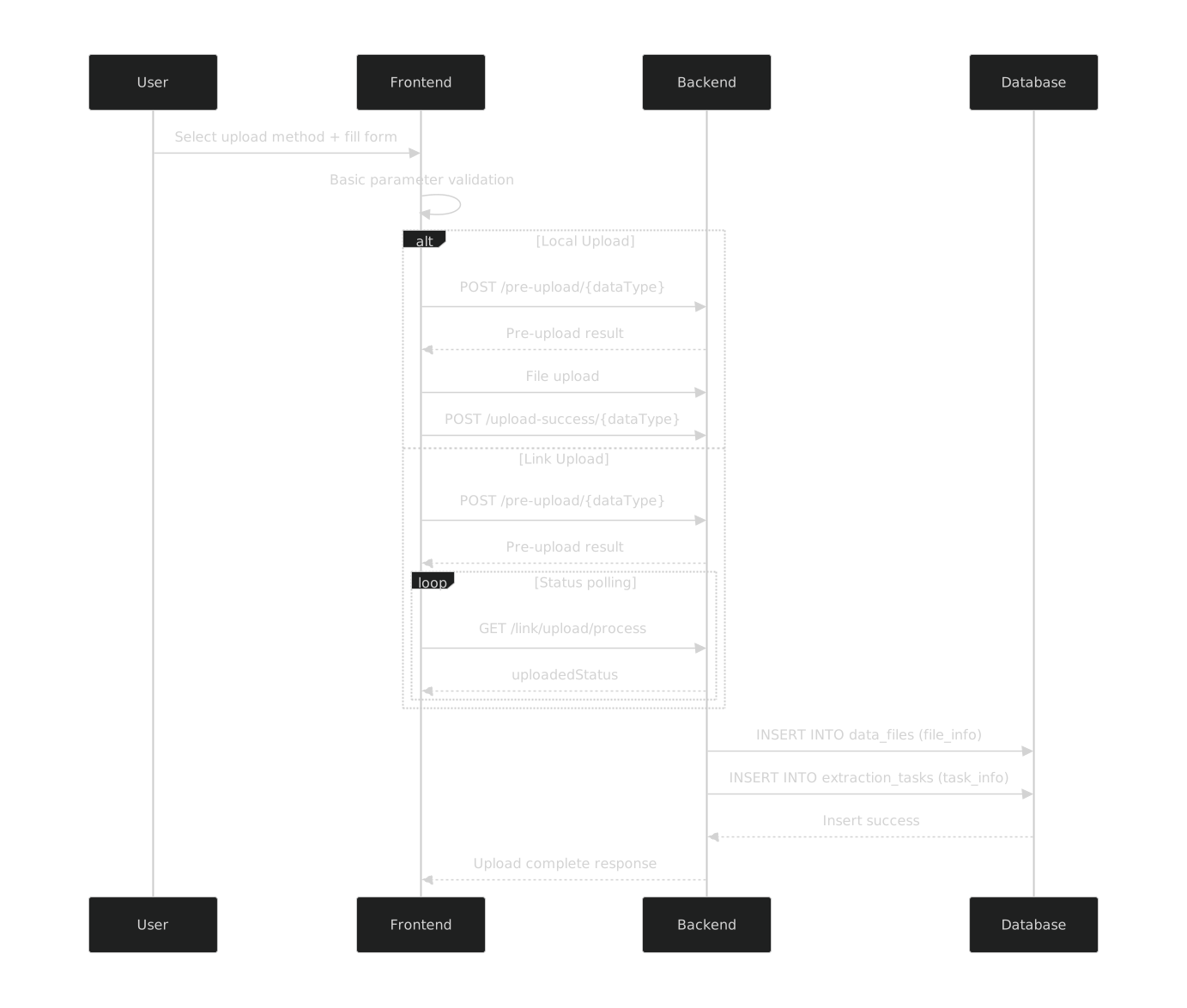
Basic validation
uploadMethod: 0 = Local, 1 = Link- Required fields: Link requires a valid
link - Size enforcement: 0 < size < 5 GB (checked in
beforeUploadand again on submit) - Form payload:
fileName,parentId(resolved from the folder tree),category,extension,fileSize - Optional fields:
captureTime(convert milliseconds to seconds),cloudOver,sensor,imageLevel - Extension detection: Local derives from the file name; Link derives from the URL path suffix
Local upload
- Call the pre-upload API based on
fileType: (raster=0/vector=1/model=2/other=3/bim=4/pointcloud=5/document=6). - Use the returned
uploadUrland send a PUT request to upload the file. refer to https://learn.microsoft.com/en-us/rest/api/storageservices/put-blob-from-url?tabs=microsoft-entra-id - After the upload succeeds, call the corresponding upload-success endpoint (raster=0/vector=1/model=2/other=3/bim=4/pointcloud=5/document=6).
- Call the pre-upload API based on
Link upload
- Reuse the same pre-upload routing as Local based on
fileType. - Once pre-upload succeeds, close the dialog and poll
GET /datafile/link/upload/processevery 5 seconds to updateuploadedStatusandfailedMsg, while emitting link-upload progress events.
- Reuse the same pre-upload routing as Local based on
Directory selection: Resolve the chosen folder tree node to
parentId(root = -1) and show the "Data Storage / …" path in the form.Other interactions: Auto-fill
dataNamefrom the first selected file (≤ 50 characters); enablecanSaveonly when required fields are satisfied; callPOST /datafile/file/editfor rename or move operations.
2.3 API Call Sequence
The table below uses Raster(0) as the reference flow. For other types, switch the :type suffix accordingly.
| Step | API | Key Return Value / Parameter | Description |
|---|---|---|---|
| ① | POST /datafile/file/pre-upload/:type | uploadUrl | Create an upload url |
| ② | (Use the returned uploadUrl and send a PUT request) | — | Upload File, refer to https://learn.microsoft.com/en-us/rest/api/storageservices/put-blob-from-url?tabs=microsoft-entra-id |
| ③ | POST /datafile/file/upload-success/:type | dataFileId | Notify the server to validate and ingest |
| ⑤ | HTTP 200 | — | Return success and refresh the list |
Error handling: If any API returns 4xx/5xx, stop the workflow, surface the message to the user, and consult the Error Codes Reference.
- The frontend first calls
POST /datafile/file/pre-upload/rasterto receiveuploadUrl. - Use the returned
uploadUrland send a PUT request. refer to https://learn.microsoft.com/en-us/rest/api/storageservices/put-blob-from-url?tabs=microsoft-entra-id - After the upload, the frontend calls the save API
POST /datafile/file/upload-success/raster, sendingfileId, file checksums/size, and form fields to persist the record. - The server writes to PostgreSQL and dispatches asynchronous tasks:
.tif/.tiffimagery triggers a Python job to extract spatial extent, projection, resolution, cloud cover, etc.- Parsed metadata is stored for later list/detail queries.
- When the API returns success, show "Add Data successful" and refresh the list.
3. Verifying Ingestion Results in the List
- Successfully ingested records appear in the list, sorted by creation time (descending).
- Use the left filter panel to locate entries quickly:
| Filter Item | Field | Description |
|---|---|---|
| Category | category | Business category |
| Type | fileExtension | File extension |
| Capture Time | capTimeStart / capTimeEnd | Capture time range |
| Maximum Clouds on Image | cloudCover | Cloud cover (0–100%) |
- List columns mirror the response from
POST /datafile/query/page; you can reuse the API for automated validation. - If parsing is still in progress, the status column may show "Processing"; once complete, cloud cover and spatial extent are updated.
The refresh logic relies on the pagination API. If the newest data is missing, refresh or reissue the query.
4. Detail Verification and Metadata Confirmation
- Click the data name or "Details" to open the drawer/page.
- Detail content comes from
GET /datafile/query/file/details, including:- Basic attributes: Name, category, type, size, uploader, capture time.
- Spatial info:
boundingBox, coordinate system (EPSG), resolution (written by the Python task). - Business metadata: Cloud cover, tags, linked datasets or analysis tasks.
- History: Processing status, publishing timeline, operation logs.
- If parsing fails, inspect the failure reason or retry entry in the UI, and cross-check backend logs.
5. API Quick Index
| Capability | API | Description |
|---|---|---|
| Pre-upload | POST data-storage/pre-upload-raster | Returns upload credentials and uploadId |
| Upload Complete | POST data-storage/upload-success-raster | Notify server to validate and ingest |
| Link Upload Progress | GET /data-storage/link-upload-process | Poll external link upload status |
| Paginated Query | POST /data-storage/query-data-file-page | List pagination and filtering |
| Query File Details | GET /data-storage/query-file-details | Get file metadata details |
| Edit File Info | POST /data-storage/edit-file | Rename file, move path, add description |
6. Debugging and Troubleshooting
- OBS Upload Failure: Check whether temporary credentials have expired, multipart parameters are correct, or inspect the browser console for details.
- Record Not Ingested: Confirm the
pre-uploadstage succeeded; inspect the database and task queue if not. - Missing Metadata: Review Python task logs to verify the source GeoTIFF carries projection info; rerun extraction if necessary.
- API 401/403: Ensure the
Authorizationheader carries a valid token and the account has access rights; refer to the Error Codes Reference.
On any exception, the service returns an error code. Use the Error Codes Reference to troubleshoot.